After hearing a lot about the benefits of using Emacs to code in Scala, I’ve decided to give it a go and also to document the steps to work with it, in case anyone else feels crazy enough to try this.
Why?
I guess first I should explain why would I use Emacs when there are products like IntelliJ IDEA which provide a lot of functionality and are easy (easier?) to use. This is a personal decision, but some reasons I’ve found to try Emacs are:
-
IDEA sometimes shows misleading errors with Scalaz. Add some EitherT or similar to your code and suddenly correct code that is built by Sbt with no complains is flagged red by IDEA. This is because they use their own compiler, and although it seems a minor issue it can become annoying (is this IDEA acting or did I break it?) and fixing it requires adding explicit type annotations to your code, which means more verbosity and less readable code.
-
Resource efficiency. This last summer, due to me changing jobs, I had to bring back to life my 7 year old desktop with its non-ssd hard drive and only 4 Gb of ram. Trying to code in it was extremely annoying. I had only IDEA, a browser and a terminal open, but it felt clunky and focussing was hard due to constant system slowdowns. Replacing IDEA by a simple text editor helped a lot, but there was a lack of syntax highlighting and other tooling I was used to. I don’t know if/when I may find myself in a similar situation again, so being comfortable with a leaner IDE has become relevant.
-
RSI. Luckily I’m not suffering from it but I’m a frequent customer of physiotherapy due to heavy mouse use harming my shoulders. I’ve been told repeatedly that Emacs is a great environment to reduce these muscular issues, better than IDEA, so it’s worth the effort.
-
I don’t mind the new payment policy of Jetbrains; I’ve been paying for my license for years and renewing for each new version, so it would make no difference to me. But the change highlights the dangers of being tied to a proprietary tool and unexpected changes to them. If we believe in the software craftsmanship movement and we care about our tools, we need full control on them.
-
Let’s be honest, knowing Emacs sounds cool. I may fail on the task and realise I’m not the nerd I expected to be, but it’s worth the test ;)
Environment
I’m going to install Emacs in a MacBook Pro with Yosemite.
There are several Emacs packages you can choose from, the one I’ve been recommended is Scapemacs so I’ll be trying this one.
For Scala goodness I’ll use Ensime and its Emacs plugin.
I won’t research any other plugins by now, geting used to Emacs is enough.
Installing Spacemacs
Spacemacs is a bundle of configuration and plugins for Emacs, as a consequence before starting you will need Emacs installed. As of today Spacemacs recommends to use the emacs-mac-port package, available in Homebrew:
	$ brew tap railwaycat/emacsmacport
	$ brew install emacs-mac --with-spacemacs-icon
After that, it is recommended to backup your current Emacs config:
	cd ~
	mv .emacs.d .emacs.bak
To install Spacemacs, just clone the repo along its submodules to ~/.emacs.d:
git clone --recursive https://github.com/syl20bnr/spacemacs ~/.emacs.dOnce done, launch Emacs and wait for the set up to be done:
$ emacsScala and Emacs
Spacemacs provides integration with Ensime via this package. It works as a layer, to install it just edit your ~/.spacemacs file and find dotspacemacs-configuration-layers near the top of the file. Add scala as a new layer:
	dotspacemacs-configuration-layers
	   '(
	     ;; ----------------------------------------------------------------
	     ;; Example of useful layers you may want to use right away.
	     ;; Uncomment some layer names and press <SPC f e R> (Vim style) or
	     ;; <M-m f e R> (Emacs style) to install them.
	     ;; ----------------------------------------------------------------
	     ;; auto-completion
	     ;; better-defaults
	     emacs-lisp
	     ;; git
	     ;; markdown
	     ;; org
	     ;; (shell :variables
	     ;;        shell-default-height 30
	     ;;        shell-default-position 'bottom)
	     ;; syntax-checking
	     version-control
	     scala
	     )
Then restart Emacs. Next create a global plugins.sbt at ~/.sbt/0.13/plugins/plugin.sbt and add to it:
	resolvers += Resolver.sonatypeRepo("snapshots")

	addSbtPlugin("org.ensime" % "ensime-sbt" % "0.1.5-SNAPSHOT")
Run sbt once in some of your projects to download the dependency.
To work with a Scala project you will need to create a .ensime file by running
sbt gen-ensimeAt the root. To load Ensime, type SPC : ensime and wait until the environment is configured, which may take a while the first time.
Learning Spacemacs
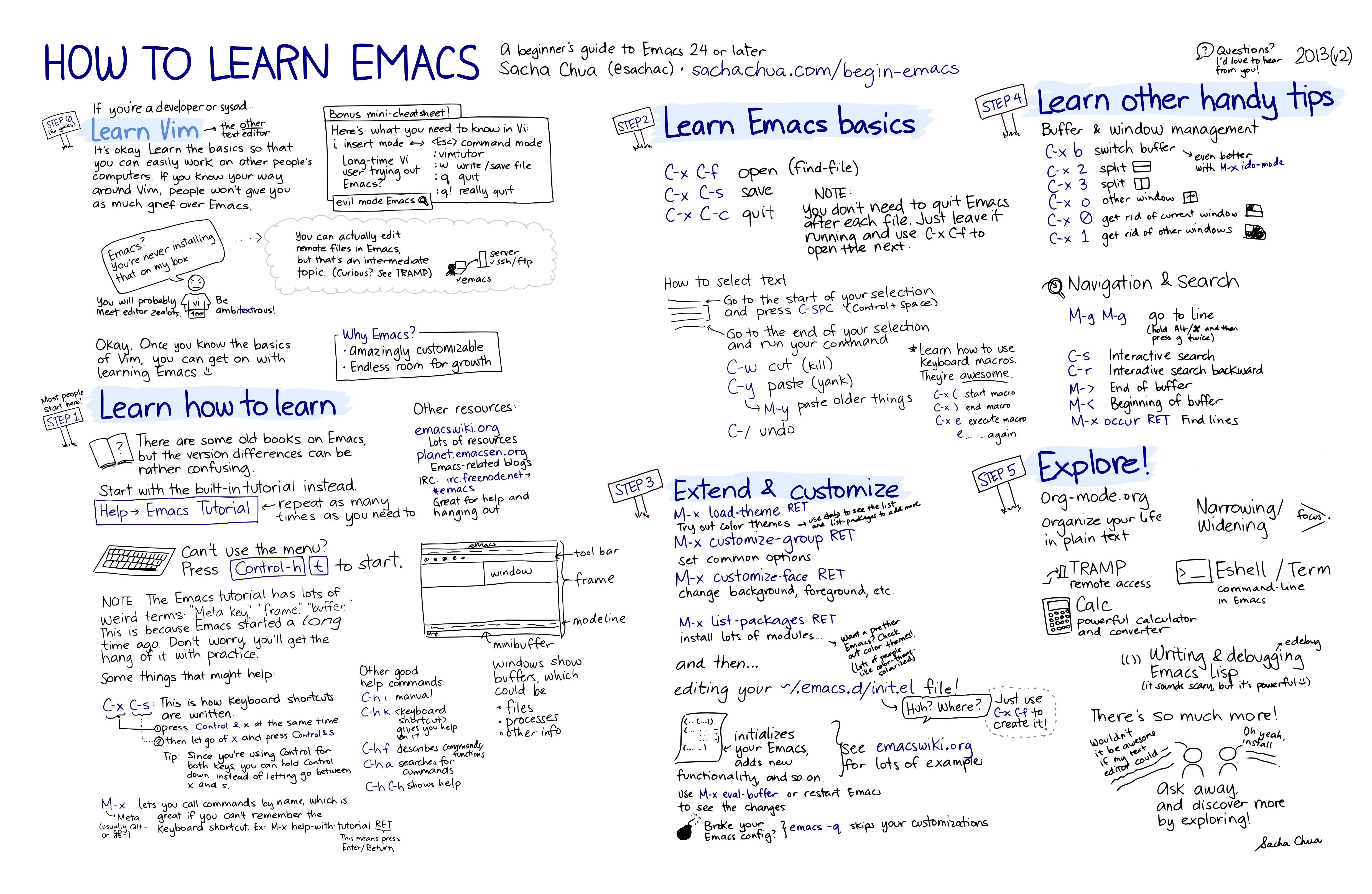
After Emacs loads all the configuration you are welcomed by… an ugly yellow screen. Ugh. Yes, it will take a while to get used to this, no one said it would be easy ;) There are two resources I’m using to get started:
I started with the Evil-adapted Vimtutor to get familiar with the key bindings. Press SPC h T to launch it.
First day feelings
This is hard. I’m ashamed to acknowledge how long did it take me to open a file in Emacs, much less to compile it via Sbt.
I can see the benefits of learning Emacs and not having to use the mouse much, but it will take effort to get used to this and to get the ‘right’ environment setup working.